Contacts
Manage your candidate relationships with our built-in CRM. Track interactions, enrichment data, and engagement history.
Overview
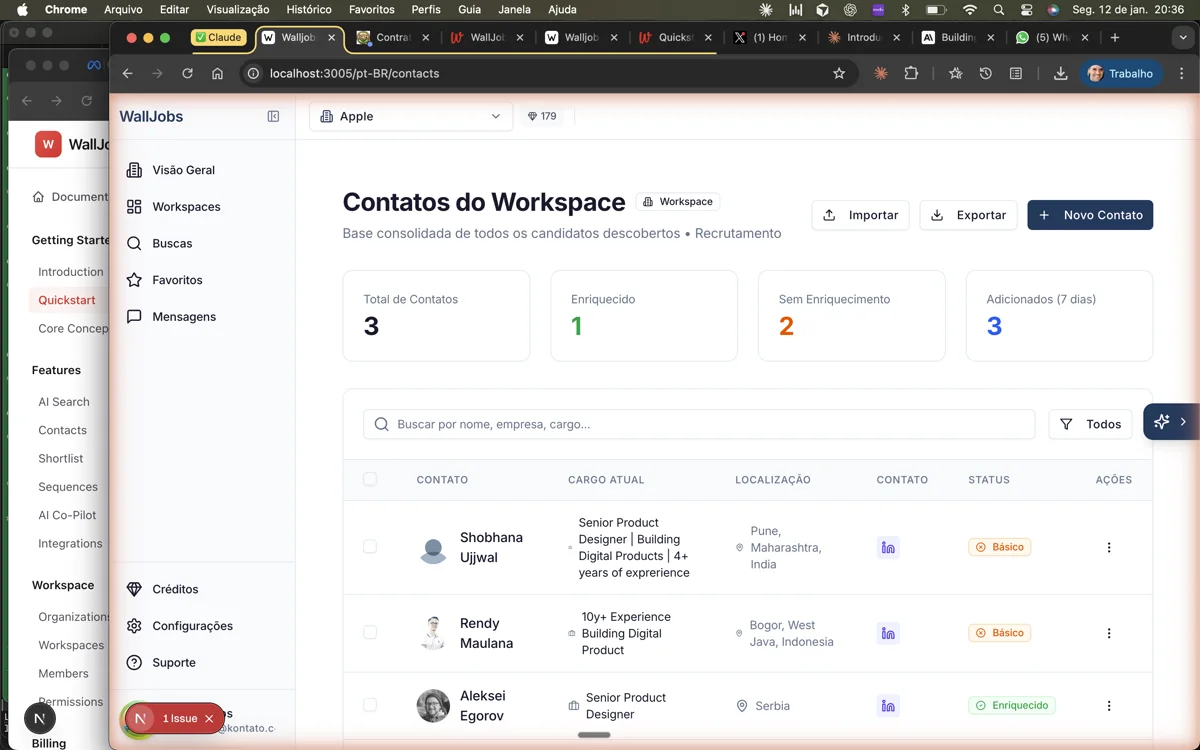
The Contacts feature is your built-in CRM for managing candidate relationships. It stores all your contacts in one place with rich profile information, interaction history, and enrichment data.
Key capabilities include:
- Comprehensive contact profiles with professional and personal information
- Automatic data enrichment from multiple sources
- Activity tracking for all interactions (emails, calls, notes)
- Tags and lists for organization and segmentation
- CSV import/export for easy data migration
Contact Profiles
Each contact profile contains:
- Basic Information - Name, headline, location, photo
- Contact Details - Email addresses, phone numbers, social profiles
- Professional Experience - Work history with companies, roles, and dates
- Education - Degrees, institutions, and certifications
- Skills - Technical and soft skills extracted from profiles
- Notes - Internal notes and comments from your team
- Activity Timeline - Complete history of interactions
Adding Contacts
There are several ways to add contacts to your workspace:
- From Search Results - Add candidates directly from AI search results to your contact database.
- Manual Entry - Click "Add Contact" and fill in the basic information. The system will attempt to enrich the profile automatically.
- CSV Import - Upload a CSV file with multiple contacts at once. Map columns to contact fields during import.
- API - Use the REST API to programmatically create contacts from external systems.
- LinkedIn Extension - Capture profiles directly from LinkedIn using our browser extension (coming soon).
Data Enrichment
Enrichment enhances contact profiles with additional data from external sources. When you enrich a contact, we gather:
- Email addresses - Personal and professional emails
- Phone numbers - Mobile and work numbers when available
- Social profiles - LinkedIn, GitHub, Twitter, and more
- Company data - Current employer information, company size, industry
- Skills validation - Verified skills from multiple sources
Enrichment can be triggered:
- Manually - Click the "Enrich" button on any profile
- In Bulk - Select multiple contacts and enrich together
- Automatically - Enable auto-enrichment when contacts are added
Activity Tracking
Every interaction with a contact is automatically logged in their activity timeline:
- Emails - Sent and received emails (when connected)
- Sequence Events - Enrollment, step completions, opens, clicks
- Status Changes - Pipeline stage movements in shortlists
- Notes - Manual notes added by team members
- Profile Updates - Changes to contact information
You can also manually log activities:
- Open the contact profile
- Click "Log Activity"
- Select the activity type (call, meeting, note)
- Add details and save
Tags and Lists
Organize your contacts with tags and lists:
- Tags - Flexible labels for categorization. Examples: "Frontend", "Interviewed", "High Priority", "Referral"
- Lists - Static or dynamic collections. Examples: "Q1 Candidates", "Alumni", "Event Attendees"
Create dynamic lists with saved filters that automatically update as contacts match the criteria. Static lists are manually curated and don't change automatically.
Import & Export
Move data in and out of WallJobs AI easily:
Import
- Go to Contacts → Import
- Upload your CSV file
- Map CSV columns to contact fields
- Review the preview and confirm
- Optionally enable auto-enrichment for new contacts
Export
- Go to Contacts
- Apply any filters or select specific contacts
- Click Export → CSV
- Choose which fields to include
- Download the file