Quickstart
Get up and running with WallJobs AI in 5 minutes. Create your first AI-powered search and find your ideal candidates.
Before You Begin
This quickstart guide will help you create your first AI-powered search and find candidates in under 5 minutes. By the end, you'll understand the basic workflow of WallJobs AI.
You'll need:
- A WallJobs AI account (free tier available)
- A modern web browser (Chrome, Firefox, Safari, or Edge)
Step 1: Create Your Account
Sign up for WallJobs AI
Visit app.walljobs.com.br/signup and create your account. You can sign up with:
- Email and password
- Google account (OAuth)
- LinkedIn account (OAuth)
After signing up, you'll receive a confirmation email. Click the link to verify your account.
Step 2: Set Up Your Workspace
Create your first workspace
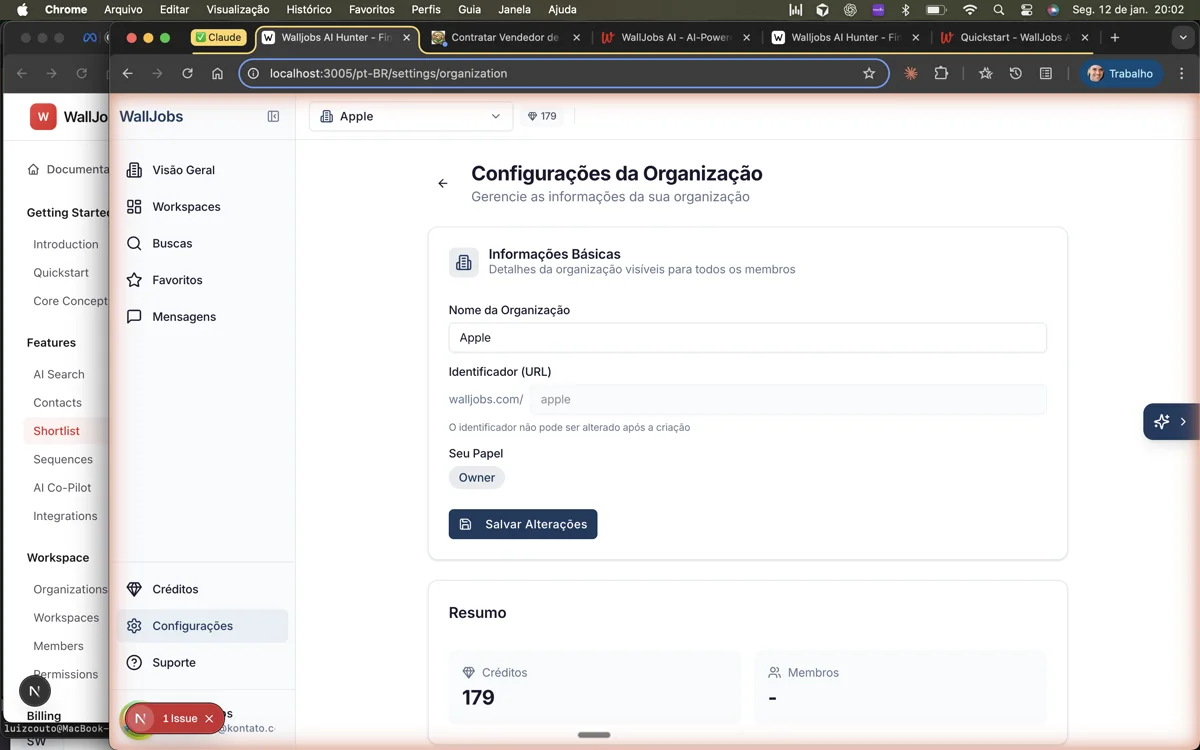
After logging in, you'll be prompted to create your first organization and workspace. A workspace is where all your recruiting activities happen.
- Enter your Organization name (usually your company name)
- Create a Workspace name (e.g., "Engineering Hiring" or "Main Workspace")
- Click Create Workspace
Step 3: Your First AI Search
Create an AI-powered search
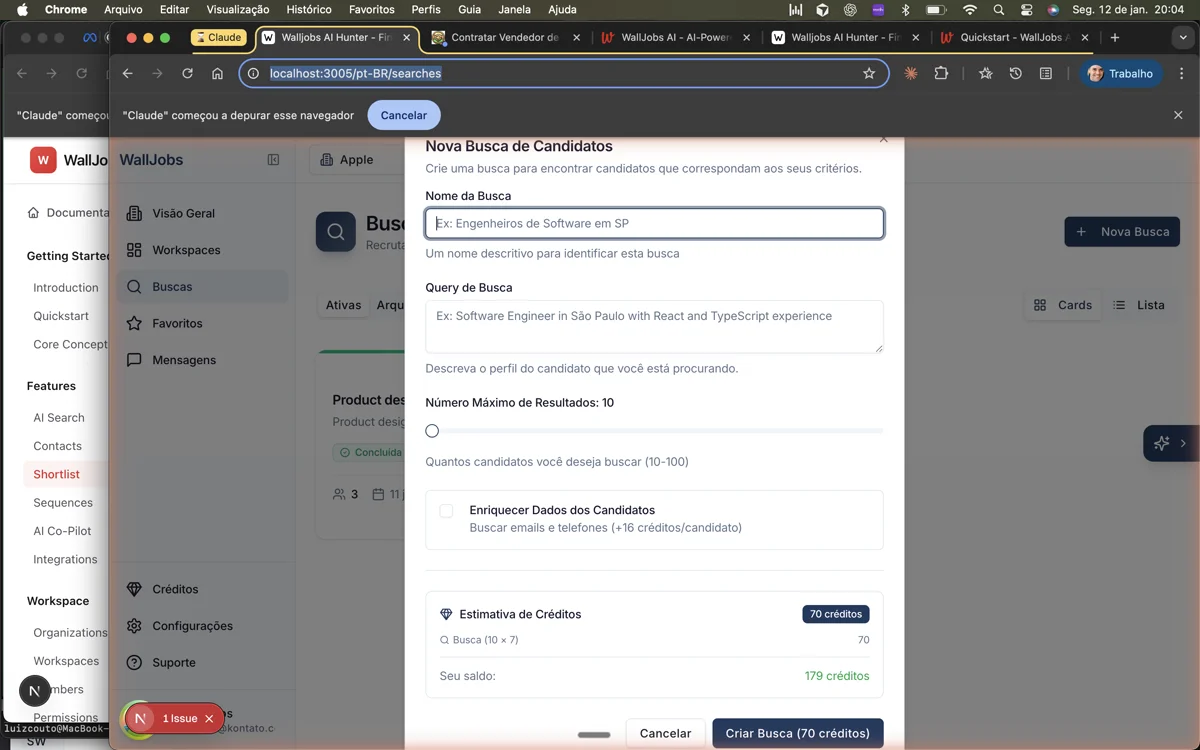
Now let's find some candidates! Navigate to the Search section in the sidebar and try your first natural language search.
In the search bar, type a description of your ideal candidate. For example:
Senior React developer with 5+ years of experience,preferably with TypeScript and Node.js background,located in São Paulo or willing to work remotely
Press Enter or click the Search button. Our AI will:
- Parse your natural language requirements
- Search our candidate database
- Rank results by relevance to your criteria
- Return a list of matching profiles
Step 4: Review Search Results
Explore candidate profiles
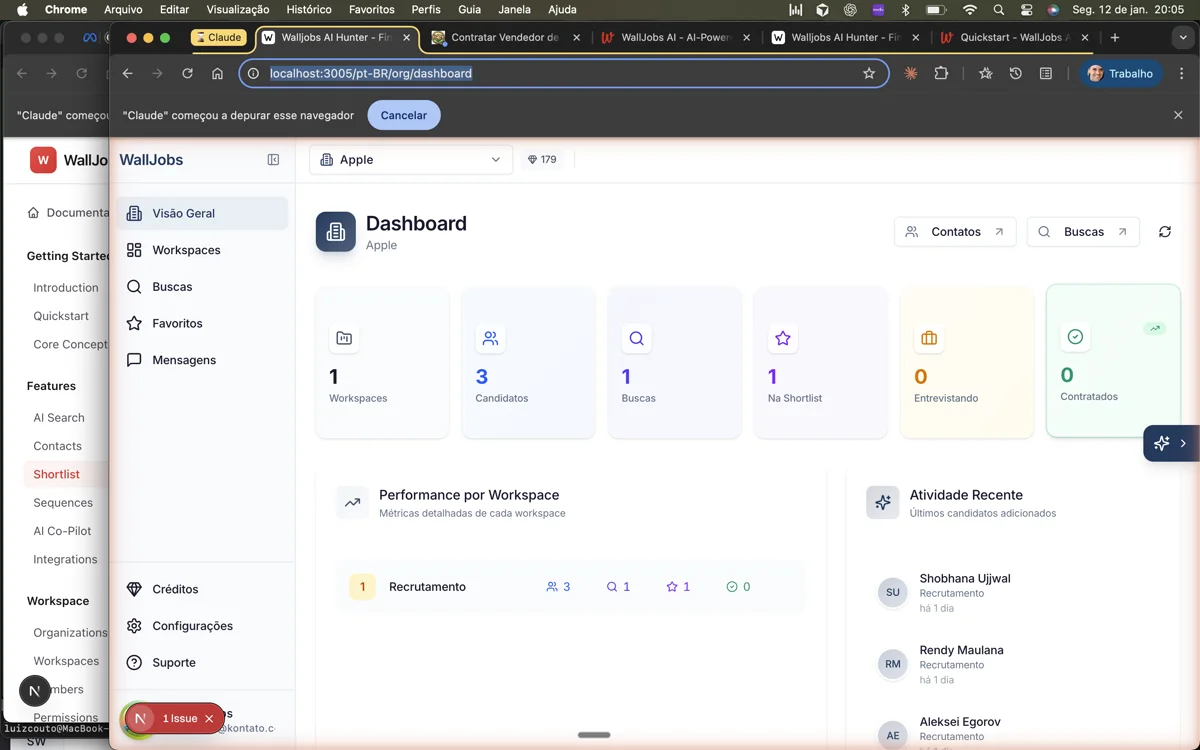
Your search results will show candidates ranked by how well they match your criteria. Each result includes:
- Match Score - How closely the candidate matches your requirements
- Profile Summary - Key information at a glance
- Skills - Relevant skills extracted from their profile
- Experience - Work history highlights
- Location - Current location and remote work preferences
Click on any candidate card to view their full profile with detailed information, including contact details, social profiles, and enrichment data.
Step 5: Add Candidates to Shortlist
Build your candidate shortlist
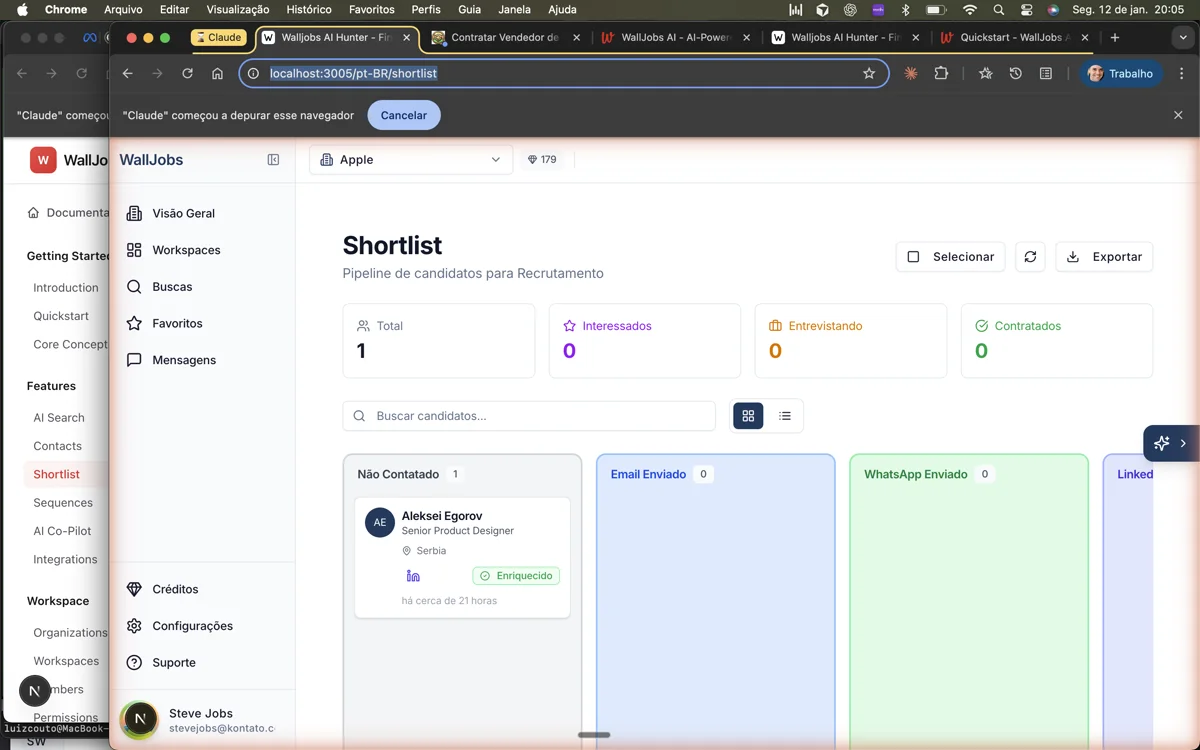
Found some promising candidates? Add them to your shortlist to track them through your hiring process.
- Hover over a candidate card
- Click the Add to Shortlist button (or press S)
- Select or create a shortlist for this position
- Choose the initial pipeline stage (e.g., "New Lead")
Navigate to Shortlist in the sidebar to see your Kanban board. Drag and drop candidates between stages as they progress through your hiring pipeline.
What's Next?
Now that you've mastered the basics, explore these topics to get the most out of WallJobs AI:
- Core Concepts - Understand credits, workspaces, and AI agents in depth.
- AI Search Advanced - Learn about filters, saved searches, and search operators.
- Sequences - Set up automated outreach campaigns to engage candidates.
- AI Co-Pilot - Use our chat assistant for hands-free recruiting.
- Integrations - Connect WhatsApp, LinkedIn, and email for multi-channel outreach.